Instead of a password, you can connect to the server over SSH with a more secure key pair (public and private). The steps below create a key in cPanel and use it in PuTTY for Windows.
Log in to cPanel (e.g. https://yourdomain.com/cpanel).
In the Security section, click SSH Access.
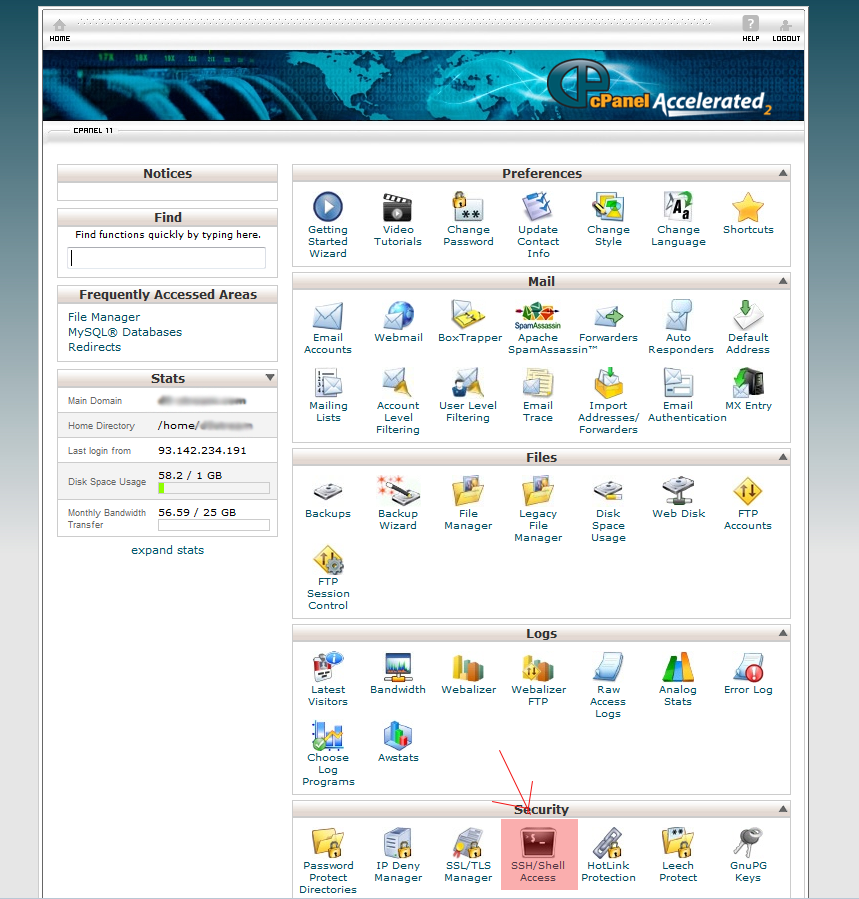
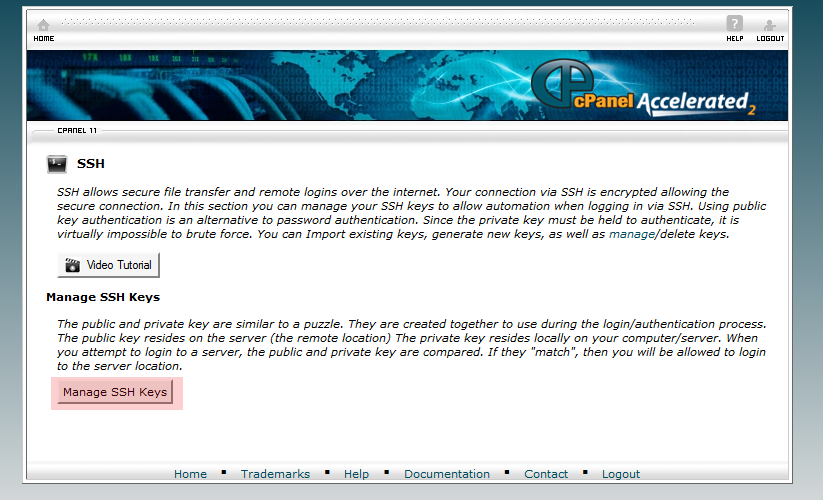
Click Manage SSH Keys.
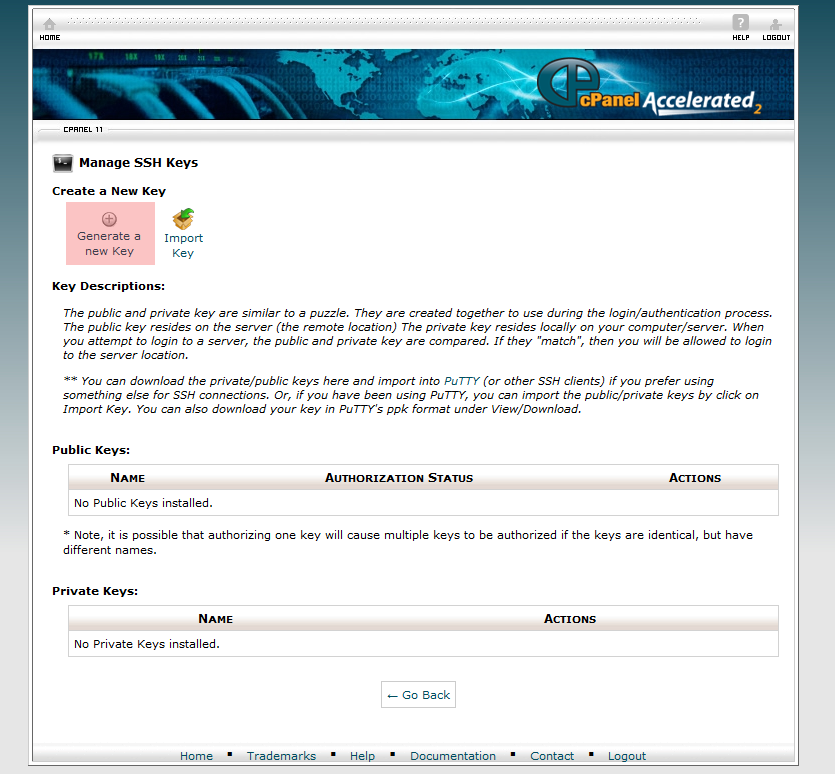
Click Generate a New Key.
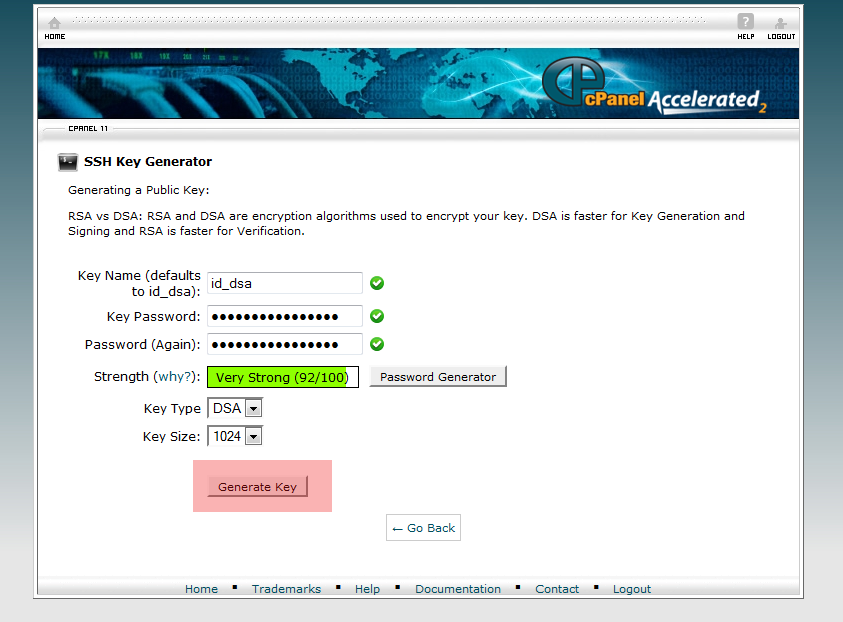
Enter a key password (Key Password), repeat it and click Generate Key. Remember the password – you'll need it in steps 9 and 13.
Go back to the key list and click Manage next to the new public key.
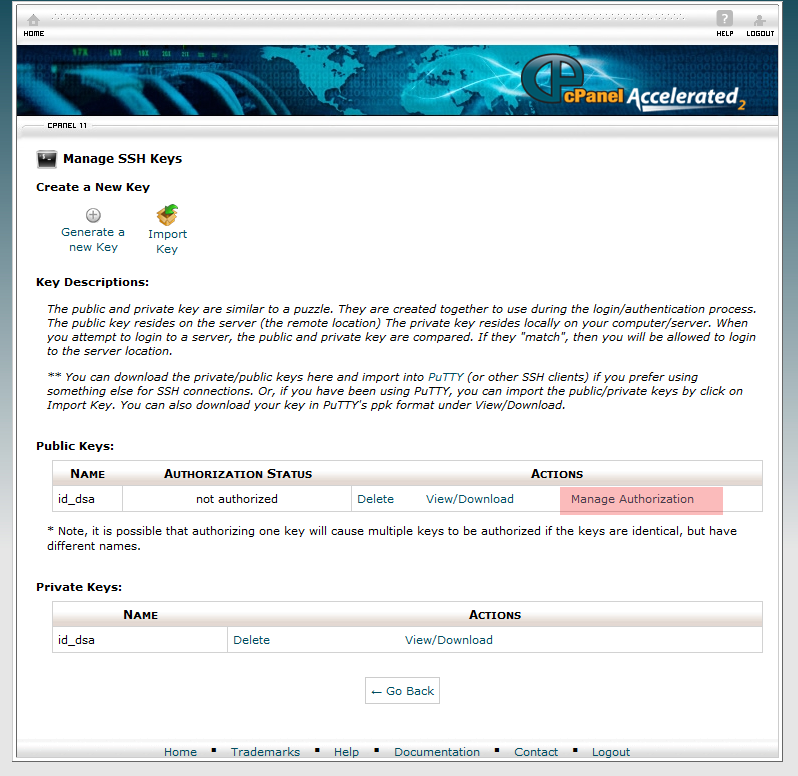
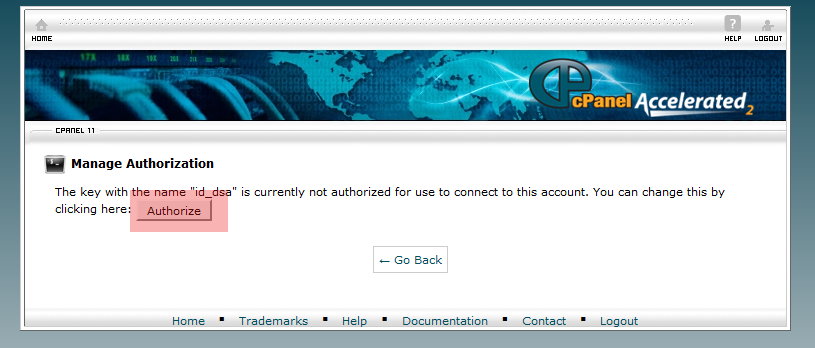
Click Authorize.
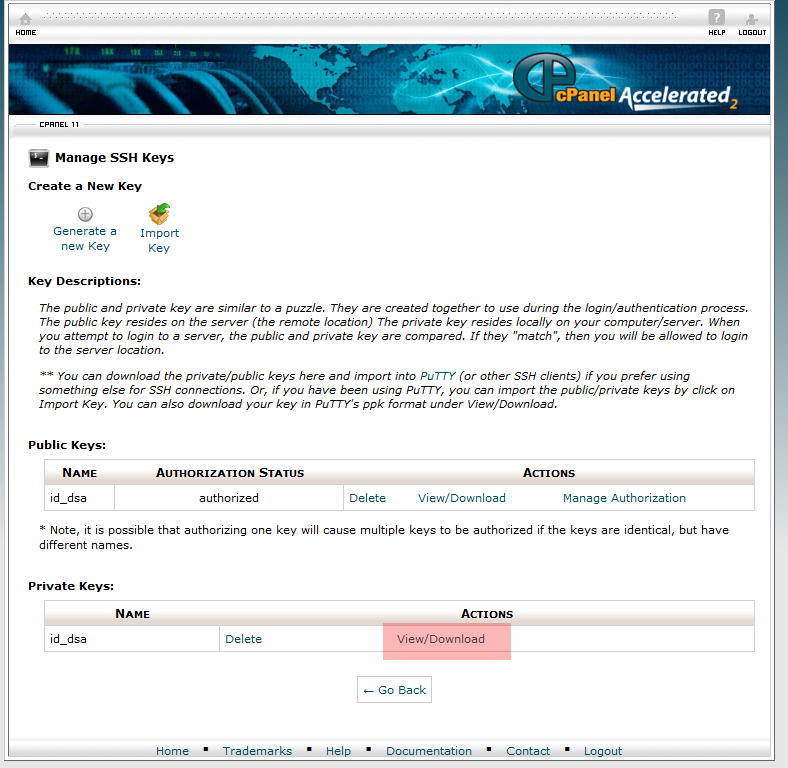
Under Private Keys, click View/Download next to your key.
In the section for converting the key to PPK format, enter the password from step 5 and click Convert.
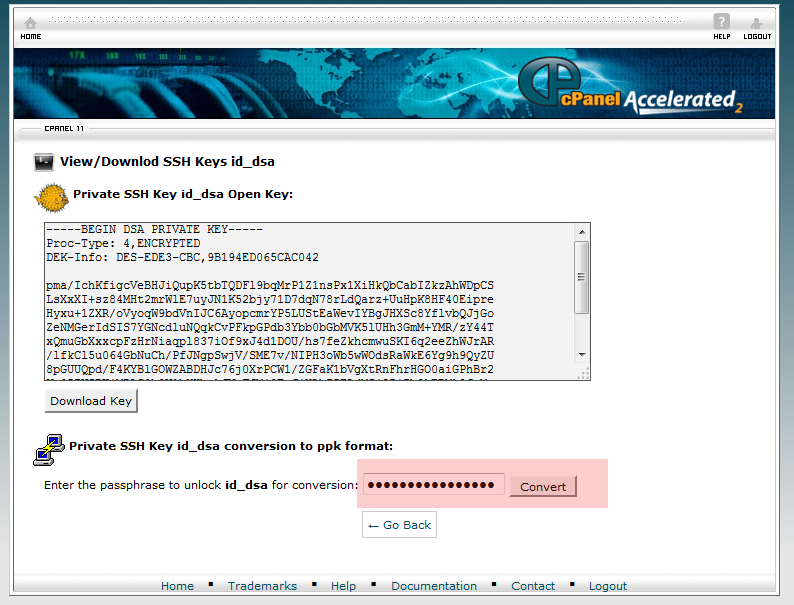
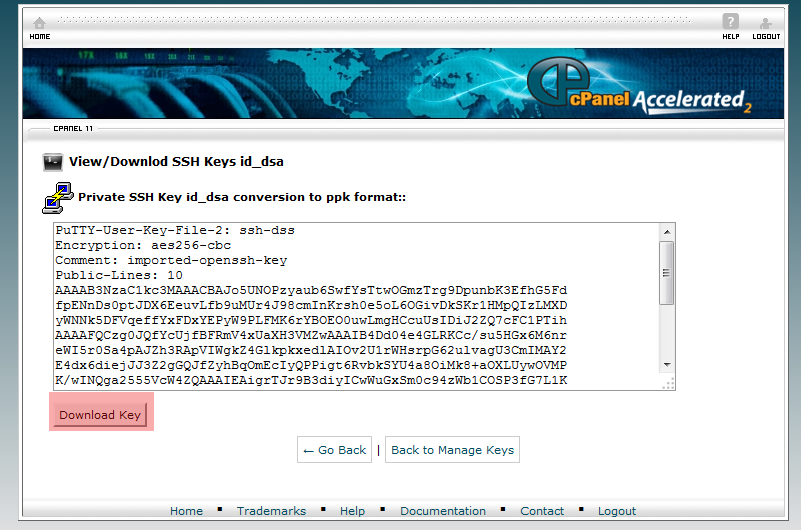
Click Download Key and save the .ppk file somewhere safe on your computer.
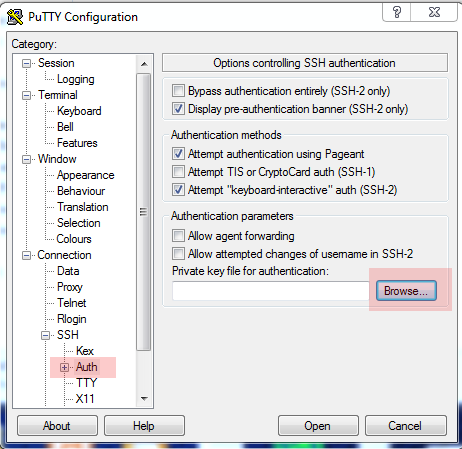
Open PuTTY and enter your domain name or the server's IP address in Host Name. In the menu on the left, open Connection > SSH > Auth (in newer versions Auth > Credentials), click Browse and select the key you saved in step 10. Then click Open.
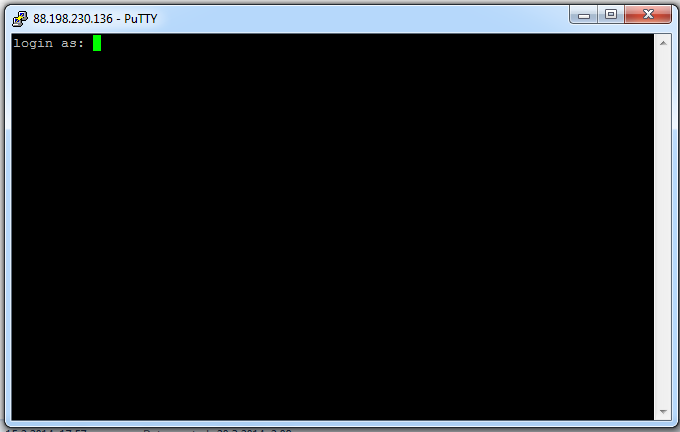
When the window opens, enter your username – it's the same as your cPanel username.
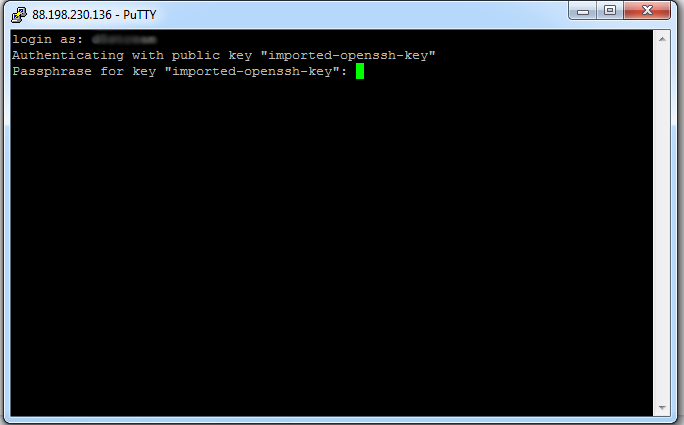
Enter the key password from step 5.
You're now connected to the server over SSH.
Tip: if you can't connect, check that SSH access is enabled for your hosting plan or contact our support team. On Linux and macOS, download the private key without converting it (the first Download Key button in step 8) and connect with ssh -i path/to/key username@yourdomain.com.